Formulas & Functions•6 min read
Excel ROUND Function: MROUND, CEILING & FLOOR Guide
Master the Excel ROUND function with MROUND, CEILING, and FLOOR. Round decimals, times, and currency accurately with practical examples.
SheetHub••6 min
A price list that shows 19.999 instead of 20.00, or a timesheet total of 7.983 hours that should read 8.00 hours, turns a clean report into something you have to explain to a manager. The Excel ROUND function fixes the displayed value and the underlying number at the same time, which is where it beats simple number formatting. This guide covers how to use the Excel ROUND function family, including ROUNDUP, ROUNDDOWN, MROUND, CEILING, and FLOOR, with step-by-step implementation patterns and practical troubleshooting for real spreadsheets.
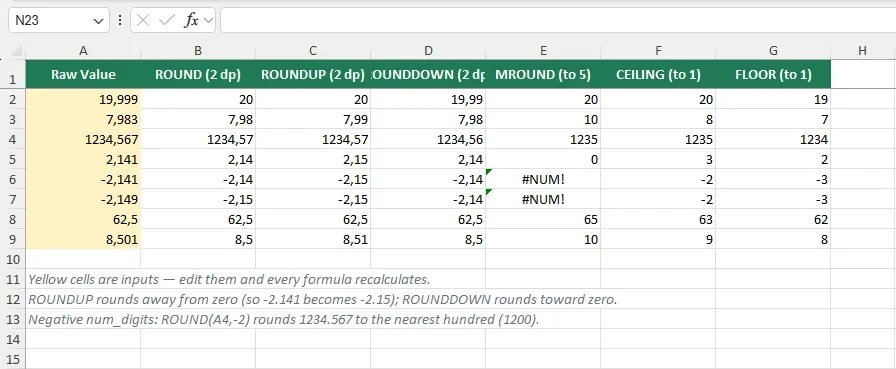 The key difference is that formatting only changes how a cell looks while the stored value stays the same. If you then SUM or VLOOKUP that cell, the full precision carries into the result. Rounding with a function changes the value itself. Choose the function when the calculation depends on the rounded number, not just the display. For the display-only path, see the Excel custom number formats guide.
Each function in the family rounds a number based on a count of digits, but they differ in how they treat the remainder. ROUND uses the standard rule of rounding half away from zero, ROUNDUP always rounds away from zero, and ROUNDDOWN always rounds toward zero.
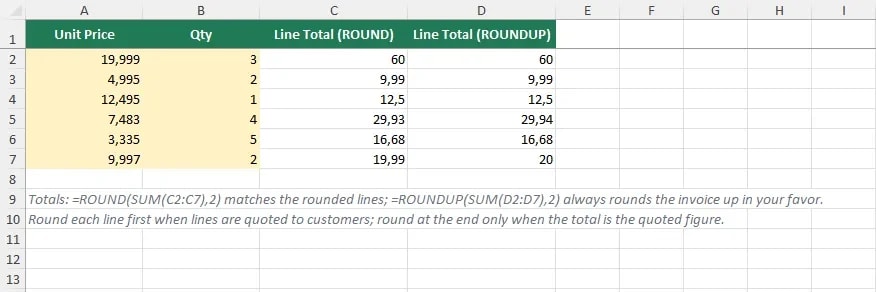
A finance workbook lists unit prices with three or more decimals coming from a rate table. Before you sum an invoice, each line should be rounded to two decimals so the total matches the printed amounts.
Rounding each line first is the better choice when individual lines are quoted to customers. Use
The key difference is that formatting only changes how a cell looks while the stored value stays the same. If you then SUM or VLOOKUP that cell, the full precision carries into the result. Rounding with a function changes the value itself. Choose the function when the calculation depends on the rounded number, not just the display. For the display-only path, see the Excel custom number formats guide.
Each function in the family rounds a number based on a count of digits, but they differ in how they treat the remainder. ROUND uses the standard rule of rounding half away from zero, ROUNDUP always rounds away from zero, and ROUNDDOWN always rounds toward zero.
A finance workbook lists unit prices with three or more decimals coming from a rate table. Before you sum an invoice, each line should be rounded to two decimals so the total matches the printed amounts.
Rounding each line first is the better choice when individual lines are quoted to customers. Use
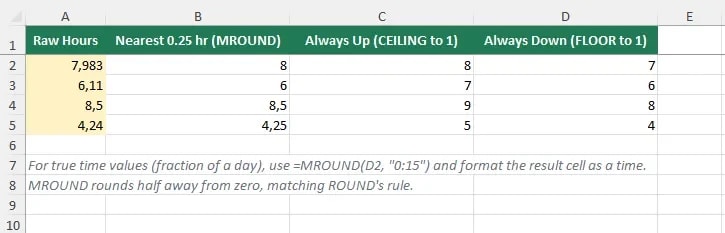
 Timesheet rounding rules are a classic use case. A 7.983 hour shift should bill as 8.00 hours when the policy is to round to the nearest quarter hour.
Note that
Timesheet rounding rules are a classic use case. A 7.983 hour shift should bill as 8.00 hours when the policy is to round to the nearest quarter hour.
Note that
 When the rule is always down, such as counting full boxes only, use
For a custom rounding rule that needs a condition, a
Negative numbers trip up rounding, because ROUNDUP and ROUNDDOWN behave differently in sign than many people expect. ROUNDUP rounds away from zero, so
For a worksheet that tracks refunds or adjustments, choose the direction deliberately for each column. A fee column that always rounds away from zero might be a
When the rule is always down, such as counting full boxes only, use
For a custom rounding rule that needs a condition, a
Negative numbers trip up rounding, because ROUNDUP and ROUNDDOWN behave differently in sign than many people expect. ROUNDUP rounds away from zero, so
For a worksheet that tracks refunds or adjustments, choose the direction deliberately for each column. A fee column that always rounds away from zero might be a
Extra decimals that keep showing after a function returns are a format issue, not a rounding issue. The value may be correctly rounded but still display 19.999 because the cell format has not been set. Pair the rounding function with a number format to make the display match.
The Excel ROUND function family solves the mismatch between what a report shows and what it calculates. ROUND rounds half away from zero, ROUNDUP and ROUNDDOWN set the direction for your business rule, and MROUND, CEILING, and FLOOR round to a custom multiple for time, quantity, or currency logic. Pick the layer to round at, pair each result with a proper number format, and keep raw precision in a reference column so the source data stays intact.
Zoom
What the Excel ROUND function family does
Syntax
=ROUND(number, num_digits)
=ROUNDUP(number, num_digits)
=ROUNDDOWN(number, num_digits)
=MROUND(number, multiple)
=CEILING(number, significance)
=FLOOR(number, significance)- number: The value you want to round.
- num_digits: The number of decimal places, or a negative number to round left of the decimal point.
- multiple / significance: The value to which each result is rounded, such as 0.05, 0.5, or 5.
num_digits argument is the part most people miss. ROUND(1234.567, -2) returns 1200, because it rounds to the nearest hundreds place.
ROUND, MROUND, CEILING, and FLOOR are available in every modern Excel version, including Excel 2021 and Microsoft 365. There is no legacy version restriction here, unlike dynamic array functions. For precision issues that arise from storing many decimals, the Excel floating point errors guide explains the underlying binary storage quirks.
Pattern 1: Round currency to two decimals
=ROUND(B2*C2, 2)How this works:
B2holds the unit price andC2the quantity.- The product is rounded to two decimal places.
- The rounded line total is then safe to sum without leftover fractions.
=ROUND(SUM(D2:D10), 2)ROUNDUP for tax or margin lines where the business always rounds in its favor:
=ROUNDUP(B2*C2, 2)Zoom
Pattern 2: Round time to the nearest quarter hour
=MROUND(D2, "0:15")How this works:
D2contains the elapsed time as a decimal fraction of a day, such as 7.983.MROUNDrounds to the nearest 15-minute mark.- The result is a time value, so format the cell as a time.
MROUND handles decimals directly, so the same idea rounds a stock quantity to the nearest 5 units:
=MROUND(D2, 5)MROUND rounds half away from zero, matching ROUND. When the rounding rule is always up, such as rounding a shipping fee to the next whole dollar, use CEILING:
=CEILING(D2, 1)Zoom
FLOOR:
=FLOOR(D2, 1)LAMBDA can bundle the logic into a reusable formula. The Excel LAMBDA function guide shows how to wrap MROUND into a named function.
Pattern 3: Round negative numbers correctly
ROUNDUP(-2.141, 2) returns -2.15. ROUNDDOWN rounds toward zero, so ROUNDDOWN(-2.149, 2) returns -2.14.
=ROUNDUP(-2.141, 2)ROUNDUP, while a discount column that always rounds toward zero might be a ROUNDDOWN.
Troubleshooting and common errors
| Error / Symptom | Root Cause | Practical Fix |
|---|---|---|
| Rounded total does not equal sum of rounded lines | Floating point storage of fractions | Round inside the calculation or use a consistent rounding point for both lines and total |
#VALUE! on MROUND | Text stored in the number cell | Convert the cell to a number with VALUE() or clean the data |
ROUNDUP gives an unexpected negative result | Confusion about rounding direction for negatives | Test on a small negative sample before applying to a column |
| Results still show too many decimals | The cell uses the default number format | Apply a number format with the 0.00 pattern to the result column |
CEILING or FLOOR returns #NUM! | A negative significance with a negative number | Use a positive significance or switch to CEILING.MATH and FLOOR.MATH |
Practical tips
- Round at the right layer. Decide whether lines or the total must match the printed values, then round at that layer consistently.
- Keep the source data unrounded in a hidden or reference column so the precision is never lost permanently.
- Format the result column as currency or a custom decimal pattern, not just the default.
- Use the
MATHvariants,CEILING.MATHandFLOOR.MATH, for negative-number and multiple-signature flexibility. - Test the direction with a small negative sample for ROUNDUP and ROUNDDOWN before tagging a whole column.
Summary
Recommended Next Reading
Excel
=EXCEL(...)Excel SWITCH Function: Simplify Nested IF Logic
Explore ↗
Excel
=FILTER(...)Excel TEXTJOIN with Conditions: Merge Filtered Strings
Explore ↗
Excel
=EXCEL(...)Excel REGEXEXTRACT: Extract Patterns and Substrings
Explore ↗
Share this tutorial
Discussion & Community
Share questions, tips, or edge-cases about this spreadsheet formula.